INSTRUCTIONS FOR STUDENTS
Learning from home
Assalaamualikum,
Please read though the step by step instruction to help you access the online portal for your home learning. Whilst I am aware of certain difficulties, please you try and maintain your current timetable at home. Your teachers will be available through the online portal during your subject session and after if needed.
I would like to encourage you all to remain calm and ready for any changes that we may need to make as a school, to ensure that your learning is not significantly impacted. The work and resources in the online portal will allow you to:
- Revisit topics you have covered in the past.
- Build on what you currently know.
- Stretch your knowledge and understanding of difficult topics.
It is important that you apply maximum effort to all areas of your studies, so that you are able to make the most of your independent learning. Don’t worry if you find some of the work difficult, your teachers are available and are more than happy to offer additional support.
Rest, drink plenty of water and eat lots of fruit and veg. If you feel unwell read the current advice from the NHS and follow it carefully.
I have enclosed the email addresses of all your teachers.
How to access my work:
There are full instructions for how you can access the Office 365 from home. Follow those instructions. If for any reason you can’t access it just send an email to s.begum@madani.org.uk.
Walaikum Salaam,
Sumaya Begum
Microsoft Office 365 – Teams
All students have their own individual logins.
E.g. m—-@mgsstudent.co.uk. (please enter your 4 digit admin number after ‘m’)
Password: Madani123. This will need to be changed once you log in.

Sign in using your login (see above)
Once you login, it will require you to change password.

It will need to make sure your password has capital letter, number and a symbol. It cannot be a common password.
Once your new password is accepted you will have access to Microsoft Office.

Click on the icon where it says ‘Teams’.

You will have the subjects on the left hand side. On the top you will have ‘Posts’ and ‘Files’.
Posts: This is where you will be able to speak to your subject teacher and receive messages. Please make sure that your messages and posts are subject related. All messages are monitored.
Files: Your teachers will be uploading resources and worksheet here. You can access this by downloading the file
Screen Sharing
Your teacher may choose to screen share with you and your class. In that case you will receive a message on the ‘post’ asking you to ‘Join Microsoft Team Meeting’

Once you have joined the meet you will be asked regarding audio. Click ‘continue without audio or video’.

Click ‘Join now’ and you will have access to your teachers screen.

If you want to message your teacher regarding work, you can do this through ‘Chat’.

Type in the teacher name in the search bar and the teacher name will appear.

Click on the name and start messaging,

When you log in to Teams you will see your subjects on the left hand side.
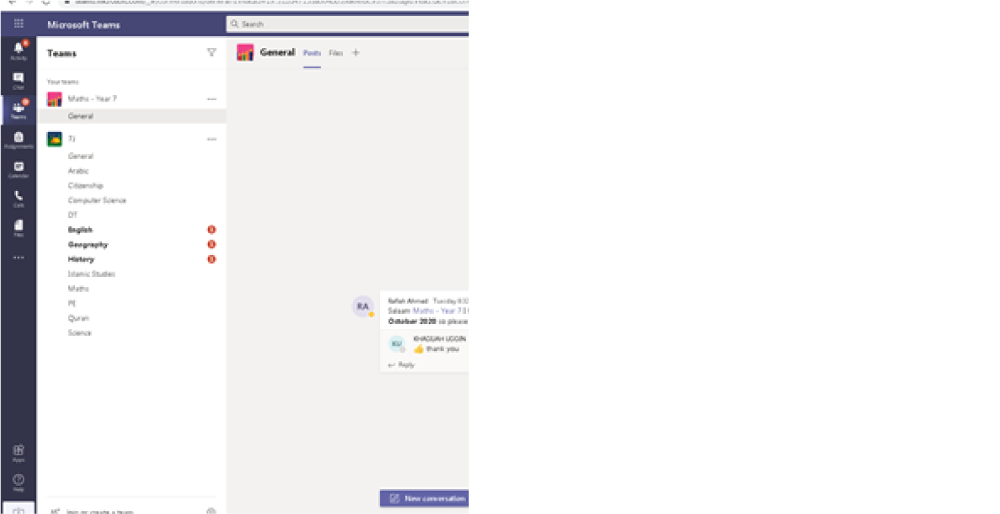
Your teachers will be submitting work under ‘Files’ for you to complete. If you need to send work to your teacher, use the ‘upload’ button.

If there are any issues with your account or any general queries, you can message any of your teachers direct from Teams or email them.